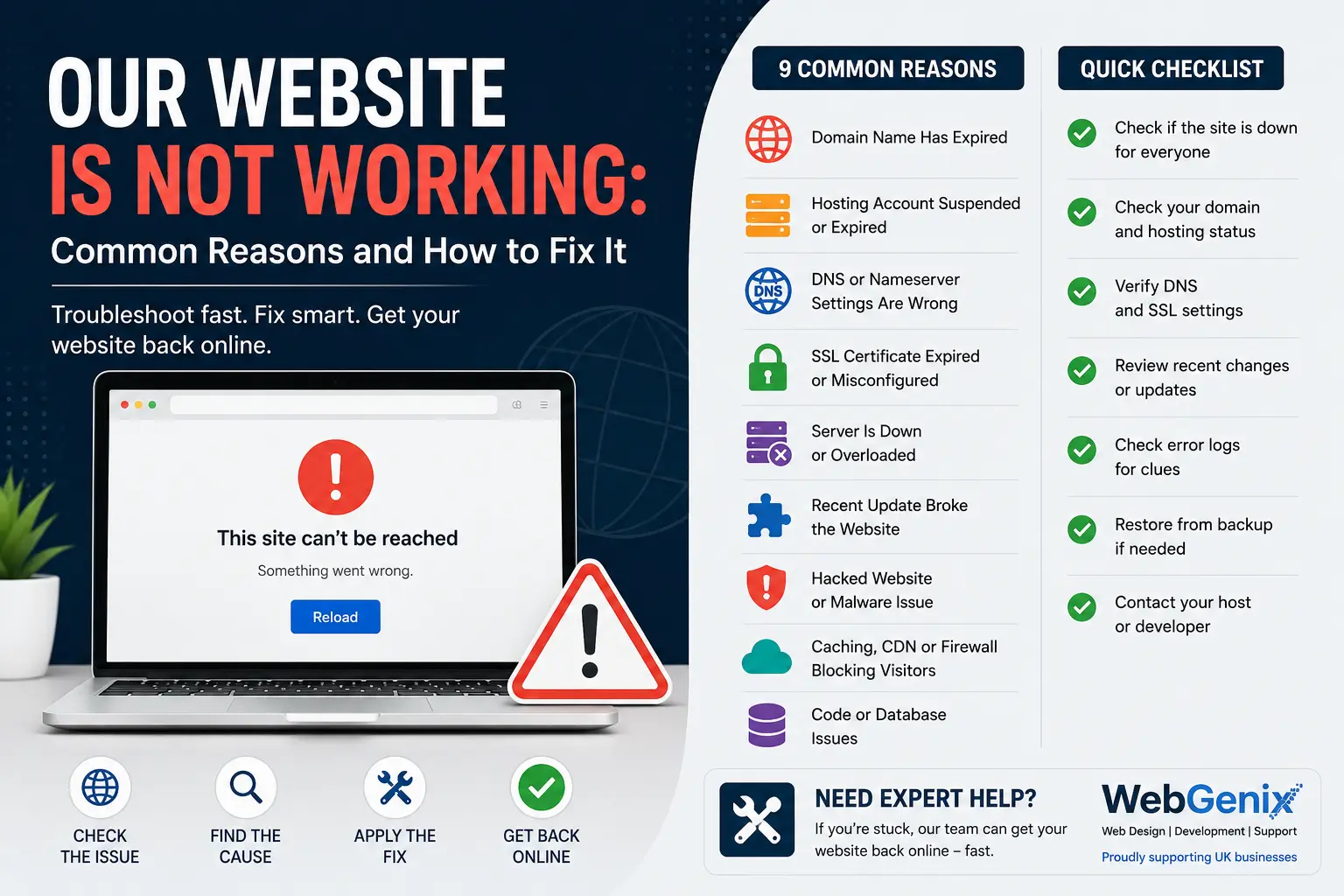
If your website is not working, the cause is almost always one of a short list: an expired domain, a hosting problem, a DNS change that hasn't settled, an expired SSL certificate, an update that broke something, or a problem on your own device rather than the site itself. The good news is that you can usually tell which one it is in under ten minutes, and several of them you can fix yourself without touching a line of code.
This guide is written for UK business owners, founders and anyone who looks after a company website without being a developer. We'll start with a quick check to work out where the problem sits, then go through the nine most common reasons a website stops working and how to fix each one. We'll also explain who to contact and how to prevent the same problem happening again.
First, Is Your Website Down for Everyone or Just You?
Before you contact your hosting company, spend five minutes ruling out your own device and internet connection. A surprising number of "the website is down" problems turn out to be a cached page, a browser extension or an office network issue.
1. Try a different device on a different network. Load your website on your phone with Wi-Fi switched off so it uses mobile data. If it works there, the problem may be local to your computer or office network rather than the website itself.
2. Use a website down-checker. Tools such as Down for Everyone or Just Me or Is It Down Right Now check your domain from outside your network. If they report that the website is online, continue with the checks below. If they report that it is down, investigate the possible causes.
3. Open a private or incognito window. If your website is not loading in your usual browser, try opening it in a private window. This can help rule out problems caused by cached files, cookies or browser extensions. If the website loads in incognito mode, clear your browser cache or disable extensions one at a time.
4. Flush your DNS cache. Your computer remembers where websites are hosted. If that information is outdated, your browser may be trying to connect to an old server. On Windows, open Command Prompt and run ipconfig /flushdns. On a Mac, open Terminal and run sudo dscacheutil -flushcache; sudo killall -HUP mDNSResponder.
5. Check the exact error message. Write down or take a screenshot of what your browser displays. The wording matters because different errors can point to different problems.
If the website works on another network and a down-checker reports that it is online, the problem is likely related to your device or connection. If it is unavailable everywhere, continue with the checks below.
Why Is My Website Not Working? The 9 Most Common Reasons
A website depends on several connected services: the domain name, DNS records that point it to a server, the hosting server itself, the SSL certificate that secures it and the website software running on top. If any one of these stops working, visitors may be unable to access your website.
Here are nine common reasons why this happens.
1. Your Domain Name Has Expired
An expired domain is a common reason for a website that was working yesterday but is unavailable today. This can happen when a renewal reminder goes to an old email address or someone forgets to renew the registration.
How to tell: Your browser may show a DNS error such as DNS_PROBE_FINISHED_NXDOMAIN or "This site can't be reached". You may also see a parking page from your domain registrar. Your business email could stop working at the same time because it may use the same domain.
How to check: Look up your domain using Nominet's domain lookup service, which provides information about .uk and .co.uk domain names. You can also log in to your domain registrar account, such as 123-Reg, GoDaddy, Namecheap, Fasthosts or Cloudflare, to check the renewal status.
UK-specific detail: The renewal process for .uk and .co.uk domains is managed under Nominet's rules. Check the current expiry and renewal status with your registrar or Nominet rather than assuming the domain can still be renewed at its normal price.
How to fix it: Renew the domain through your registrar if it is still eligible for renewal. Once renewed, DNS may need time to update before your website and email become accessible again. This can take from a few minutes to longer, depending on the DNS settings.
While you are checking the account, enable automatic renewal and make sure the contact email address is one that someone regularly checks. Renewal reminders going to an old inbox are among the mistakes that can affect new businesses. You can also read about mistakes UK startups make on their first website.
2. Your Hosting Account Is Suspended or Has Expired
Your domain may be working correctly while the server hosting your website has been switched off or suspended.
Hosting companies may suspend accounts because of unpaid invoices, resource limits or security problems. In some cases, an automated system may flag an account for sending spam or hosting malware.
How to tell: You may see a message such as "This account has been suspended", a default page from your hosting company or a 403 Forbidden error across the website.
How to check: Log in to your hosting control panel and look for billing notices, account warnings or resource usage alerts. Also search your inbox, including the spam folder, for recent messages from your hosting provider.
How to fix it: If an invoice is unpaid, contact your hosting provider and follow its payment and reinstatement process. If your account has exceeded its resource limits, you may need to reduce website resource usage or move to a suitable hosting plan.
If the suspension is related to malware, the infection will need to be investigated and removed before the hosting company restores the account.
3. DNS or Nameserver Settings Are Wrong
DNS is like an address book for the internet. It tells browsers which server hosts your domain. If the DNS settings are incorrect, visitors may be sent to the wrong server or may not be able to reach your website at all.
DNS problems often happen after moving a website to a new hosting provider, changing email services, adding Cloudflare or editing DNS records.
How to tell: You may see DNS errors, find that your website loads for some people but not others, or discover that your domain displays a different website.
How to check: Use a DNS lookup tool such as WhatsMyDNS or DNSChecker. Enter your domain and check the A record, which shows the IP address your domain points to. Compare it with the IP address provided by your hosting company.
How to fix it: Correct the A record or nameservers through the company managing your DNS. This may be your domain registrar, hosting provider or Cloudflare.
After making a change, allow time for DNS propagation. Updates can become visible within a few hours, although some changes may take longer to appear across different networks.
Avoid repeatedly changing DNS records because the website does not work immediately. Incorrect changes can create additional problems. If you have recently moved your website to another host, our website migration service can help ensure the process is handled correctly.
4. Your SSL Certificate Has Expired or Is Misconfigured
An SSL certificate helps protect the connection between your website and its visitors. It allows your website to use HTTPS, which is why you normally see a padlock or security icon in the browser address bar.
If the certificate expires or is incorrectly configured, visitors may see a warning instead of your website.
How to tell: Common messages include:
- "Your connection is not private"
NET::ERR_CERT_DATE_INVALIDERR_SSL_PROTOCOL_ERROR
How to check: Select the security icon beside your website address in the browser and view the certificate details. Check the expiry date and whether the certificate is valid for your domain.
How to fix it: Contact your hosting provider or SSL certificate provider to renew or reinstall the certificate. Many hosting providers offer free Let's Encrypt certificates with automatic renewal.
If the certificate is valid but the browser still shows a warning, the website may have mixed content. This happens when a secure HTTPS page loads some images, scripts or other resources through an insecure HTTP connection.
A developer can check the website configuration and correct these issues. If the problem involves website code or configuration, WebGenix website development services can help investigate the issue.
5. The Server Is Down or Overloaded
Sometimes the hosting provider experiences a server outage. In other cases, your website is receiving more traffic or using more resources than the hosting plan can handle.
This can happen during a marketing campaign, a sudden increase in visitors or when a plugin places too much demand on the server.
How to tell: You may see an HTTP error in the 500 range:
- 500 Internal Server Error: Something unexpected has gone wrong on the server.
- 502 Bad Gateway: One server has received an invalid response from another.
- 503 Service Unavailable: The server is temporarily unable to handle the request.
- 504 Gateway Timeout: A server has not received a response in time.
How to check: Visit your hosting provider's status page or check its official social media channels for outage announcements. If you can access your hosting control panel, review CPU, memory and other resource usage against your plan's limits.
How to fix it: If the hosting provider has a wider outage, you may need to wait for its technical team to resolve it. If your account is reaching its resource limits, investigate what is using those resources.
Reducing unnecessary plugins, improving caching and compressing images may help. If the website regularly struggles with loading speed, our website speed optimisation service can help identify performance problems.
You can also read our Core Web Vitals guide for UK small businesses to understand how website performance affects visitors.
Repeated server errors can also affect search engine crawling. If Google cannot access your website over an extended period, it may reduce crawling and eventually remove affected pages from its index. Once the technical problem is fixed, check your website in Google Search Console.
6. A Recent Update Broke the Website
If your website stopped working immediately after updating a plugin, theme, WordPress installation or PHP version, the update may have caused a compatibility problem.
WordPress websites can be particularly affected by plugin and theme conflicts. Online shops may have additional risks because they often use several plugins to manage products, payments, delivery and other features.
How to tell: You may see a blank white page, a message saying "There has been a critical error on this website" or a PHP error showing a file path.
How to check: Think about what changed shortly before the problem started. Check your WordPress administrator email for a recovery-mode message if a fatal error has occurred.
How to fix it: If WordPress provides a recovery-mode link, use it to access the dashboard and investigate the plugin or theme mentioned in the error.
If you cannot access the dashboard, a developer may be able to disable the affected plugin through the hosting file manager or FTP. If the PHP version was changed recently, the developer or hosting provider can check whether the previous version needs to be restored.
If the update has caused serious damage, restoring a clean backup from before the update may be necessary.
For WordPress-specific problems, a WordPress developer can investigate plugin conflicts, theme errors and other technical issues.
If you run an online shop, WooCommerce development can also help with technical problems affecting your store's features and functionality.
7. Your Website Has Been Hacked or Flagged for Malware
A hacked website does not always look obviously damaged. It may redirect visitors to suspicious websites, display unexpected content or become unavailable because the hosting provider has restricted access.
How to tell: Look out for:
- Unexpected redirects or pop-ups
- Unknown administrator accounts
- Unfamiliar pages appearing on your website
- A red browser warning
- Security alerts in Google Search Console
- Unexpected changes to website files
How to check: Check the Security Issues report in Google Search Console. You can also use Google's Safe Browsing site status tool or a reputable website security scanner to investigate possible malware.
How to fix it: Change passwords for your hosting account, WordPress administrator account, FTP, database and any other connected services.
Have the website scanned and cleaned by a qualified developer or security professional. If you have a clean backup from before the infection, it may be possible to restore the website from that backup.
After cleaning the website, update its software, remove unused plugins and themes, review administrator accounts and strengthen security settings. If Google has flagged the website, request a review through Search Console after the problem has been resolved.
8. Caching, CDN or Firewall Settings Are Blocking Visitors
Caching and content delivery network (CDN) services help websites load faster. Security tools and firewalls help protect websites from unwanted traffic.
However, incorrect settings can sometimes block legitimate visitors or prevent the website from loading.
Cloudflare is one example of a service that sits between visitors and the website's hosting server.
How to tell: You may see Cloudflare error messages such as 521 or 522. Some visitors may see an old version of a page, a CAPTCHA or an "Access denied" message.
How to fix it: Start by clearing the cache in your website's caching plugin or CDN service. If you use Cloudflare, check its status and configuration.
Review firewall and security-plugin rules to see whether legitimate visitors or IP addresses are being blocked. If you are unsure, ask your developer or hosting provider to investigate before disabling security protections.
Once the problem is resolved, make sure the website's caching and security settings are working correctly.
9. Something Broke in the Code or Database
Sometimes the problem is within the website's own code or database.
This can happen after someone manually edits a theme file, changes website configuration, updates a database or modifies file permissions.
How to tell: You may see messages such as "Error establishing a database connection", a PHP parse error or a website that loads without its normal styling and images.
How to check: Look at the latest error logs through your hosting control panel. The most recent entries may identify the file, database or process causing the problem.
How to fix it: If the problem started after editing a file, the change may need to be reversed. If the database is damaged, your hosting provider or developer can investigate whether it can be repaired.
If your hosting account has run out of disk space, old backups and unnecessary log files may need to be removed safely.
For more complex problems, it is better to contact a developer rather than make random changes. If your website regularly develops technical issues, a responsive website redesign may be worth considering instead of repeatedly fixing an outdated website.
How to Fix a Website That Is Not Working: A Step-by-Step Checklist
If you are unsure where to start, work through these checks in order:
- Open your website on a mobile phone using mobile data.
- Use a website down-checker to see whether the website is accessible elsewhere.
- Write down the exact error message shown in your browser.
- Check whether your domain registration has expired.
- Log in to your hosting account and look for suspension or billing notices.
- Check whether your DNS records point to the correct hosting server.
- Check whether your SSL certificate is valid.
- Think about recent changes, including website updates, new plugins or hosting changes.
- Clear your website cache and check any CDN or firewall settings.
- Review server error logs if you have access.
- Restore a clean backup if necessary.
- Contact your hosting provider or developer if the issue remains unresolved.
Common Website Error Messages and Their Likely Causes
| Error message or symptom | Possible cause | What to check |
| DNS_PROBE_FINISHED_NXDOMAIN | Expired domain or incorrect DNS | Domain and DNS settings |
| This site can't be reached | DNS, network or server problem | Domain, connection and hosting |
| Your connection is not private | SSL certificate problem | Certificate validity and HTTPS |
| This account has been suspended | Hosting account suspension | Hosting account and billing |
| 500 Internal Server Error | Server configuration or plugin issue | Error logs and recent updates |
| 502 Bad Gateway | Server communication problem | Hosting provider and server status |
| 503 Service Unavailable | Server overload or maintenance | Server resources and hosting status |
| 521 or 522 | Connection problem between CDN and origin server | Cloudflare and hosting server |
| White screen or critical error | Plugin, theme or PHP conflict | Recent WordPress updates |
| Error establishing a database connection | Database or configuration issue | Database connection and server logs |
Who Should You Contact: Your Host, Domain Registrar or Developer?
One frustrating part of a website outage is being passed between different companies. The right person to contact depends on where the problem is happening.
| Problem | Who to contact | Information to provide |
| Domain expired or DNS records are incorrect | Domain registrar or DNS provider | Domain name and account details |
| Hosting suspended or server errors | Hosting company | Account details, error message and when it started |
| Website broken after an update | Web developer or agency | Recent changes, website access and error message |
| Malware or hacking warning | Developer or security professional, then hosting provider | Security alerts and backup details |
| Website works for you but not for customers | Developer or agency | Customer's device, browser, location and screenshot |
When contacting someone, explain what you have already checked. For example, saying that the domain is active, DNS points to the correct IP address and the SSL certificate is valid gives a developer a better starting point than simply saying the website is broken.
If you do not have a developer available, WebGenix website support services can help UK businesses investigate website problems, including websites that were not originally built by WebGenix.
How to Stop Your Website Going Down Again
Many website problems can be prevented with regular checks and maintenance.
- Enable automatic domain renewal: Keep your domain registration active and make sure the renewal email goes to an address someone regularly checks.
- Check your SSL certificate: Make sure the certificate renews correctly, especially after DNS or hosting changes.
- Set up uptime monitoring: Services such as Uptime Robot can check whether your website is available and alert you when it stops responding.
- Keep regular backups: Store backups securely and test that they can be restored.
- Test updates before applying them: Use a staging website to check major plugin, theme and PHP updates before making changes to your live site.
- Remove unused plugins and themes: Unnecessary software can create security and maintenance problems.
- Use Google Search Console: Verify your website so you can receive alerts about security and indexing issues.
- Arrange regular maintenance: Make sure someone is responsible for updates, backups, security checks and technical issues.
A website maintenance plan can help keep your website updated, monitored and working properly. If you are unsure about your website's current condition, you can also request a free website audit.
If you are preparing to launch a new website, our UK small business website launch checklist covers important checks to complete before your website goes live.
Frequently Asked Questions
Why is my website suddenly not working when I haven't changed anything?
An expired domain, hosting outage, expired SSL certificate or unpaid hosting invoice can make a website stop working even if nobody has changed the website itself. Start by checking your domain registration, hosting account and SSL certificate.
How long does DNS propagation take in the UK?
Many DNS changes become visible within a few hours, but updates can take up to 48 hours to appear across different networks worldwide. Your computer or router may also keep an older DNS record temporarily.
What happens if my .co.uk domain expires?
An expired .co.uk domain may stop working, affecting both your website and business email. The renewal and suspension process depends on the domain's status and the applicable Nominet rules. Check the current position with your registrar or Nominet as soon as possible.
What does a 500 Internal Server Error mean?
A 500 Internal Server Error means the server has encountered an unexpected problem. Possible causes include a plugin conflict, incorrect server configuration, a PHP error or limited server resources. Checking the server error logs can help identify the cause.
My website works on my phone but not on my computer. Is it down?
Not necessarily. If your website works on another device or network, the problem may be related to your computer's browser cache, DNS cache, browser extensions or office network. Try opening the website in a private window and clearing your browser cache.
Will my Google rankings be affected if my website is down?
A short outage is unlikely to cause lasting ranking problems. However, if Google repeatedly encounters server errors over an extended period, it may slow crawling or remove affected pages from its index. Fix persistent downtime quickly and check your website through Google Search Console.
Need Help Getting Your Website Back Online?
If you have worked through this guide and your website is still not working, or you would rather have a professional investigate the problem, WebGenix can help.
We are a Derby-based web design and development agency supporting businesses across Derby, Nottingham, Leicester and the rest of the UK. Our services include website design, development, technical support, website maintenance and website redesign.
Whether you need help with a server error, a broken WordPress website, a website migration or ongoing technical maintenance, our team can investigate the problem and help you find a suitable solution.
Get in touch with WebGenix and share your domain name along with the error message you are seeing. We can then understand the issue and discuss the next steps.




Comments (0)
No comments yet. Be the first to share your thoughts!